
Contents
Getting started
- Welcome to NyrexVJ
- Installing and first start
- The window at a glance
- Your first show in five minutes
Playing visuals
- The clip grid
- Decks and transitions
- Layers and blending
- The Clip window
- Effects
- The Library
- Presets and sessions
- The Master window
Music and motion
Your own content
- Video and image clips
- Your own shaders
- 3D models
- The Clip Creator
- Text, particles and effect chains
- The node effect editor
- Live sources: Spout, NDI and cameras
Output and recording
Live control and shows
- Control: MIDI, OSC and the web page
- Show sync and timecode
- The show timeline
- Stage: DMX, VRSL and VRChat
- Plugins
Reference and help
Manual / Your own content
The node effect editor
#What it does
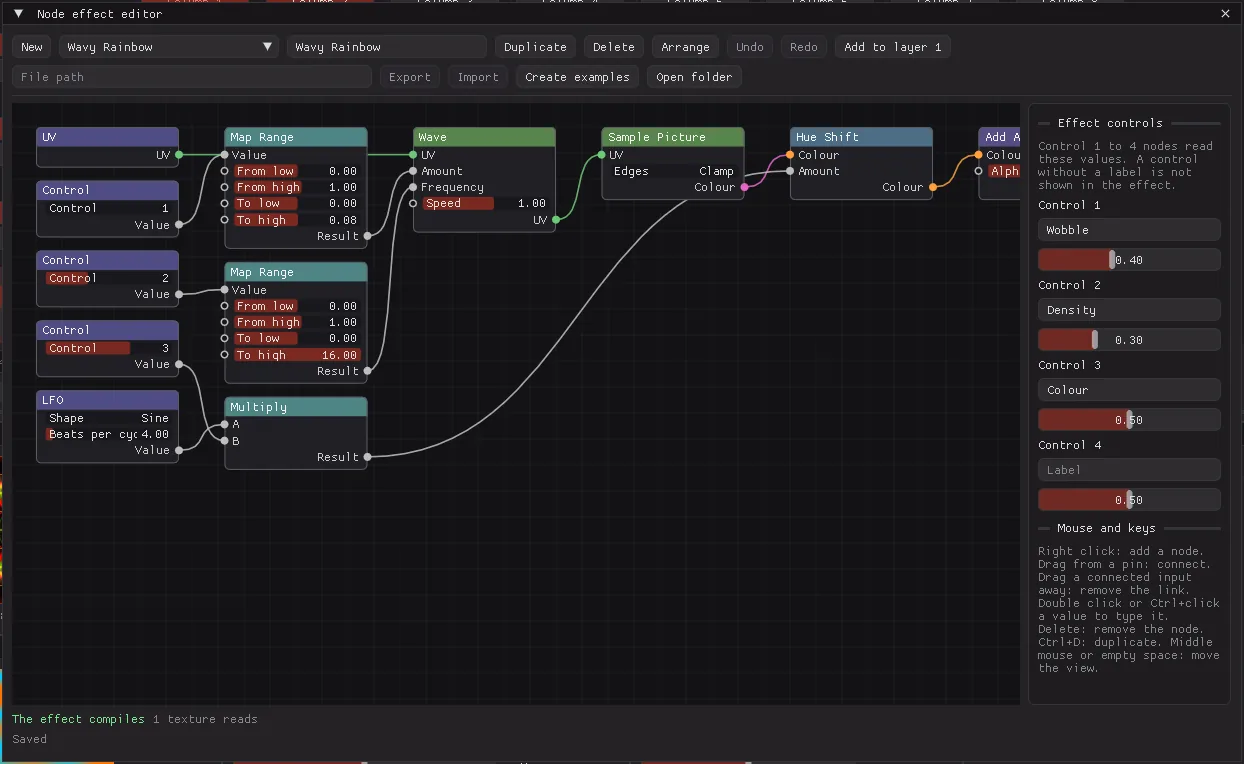
The node editor builds your own effects without code. You connect nodes for pictures, audio, beats, LFOs, maths, colour, distortion, noise and shapes, and NyrexVJ turns the graph into one shader. The result is a normal effect: it shows in the Library as Node: name, goes into any layer or master slot, has up to four sliders and can read the macros, the audio and the beat. A node effect costs what the same effect written by hand costs.
#Quick start
- Open the editor with Creator, Node effect editor, or with Edit nodes below a node effect in the effect rack.
- Press New, or Create examples for four ready made effects: Wavy Rainbow, Mirror Swirl, Kick Pulse and Trails.
- Right click in the graph and search for a node. Drag from an output pin on the right of a node to an input pin on the left of another to connect them. The Output node is the end of every effect.
- The effect is saved and rebuilt a moment after every change. The status line shows whether it compiles, how often it reads the picture and the message on the node that is wrong. An invalid edit keeps the last good shader running.
- Press Add to layer to use the effect on the selected layer.
#Working in the graph
| Action | How |
|---|---|
| Add a node | Right click on empty space, type to search, click the node |
| Connect | Drag from an output pin to an input pin |
| Remove a link | Drag a connected input away, or right click the node and choose Disconnect |
| Change a value | Drag the value box, or double click it and type a number |
| Delete a node | Select it and press Delete or Backspace |
| Duplicate | Ctrl+D or right click, Duplicate |
| Move the view | Middle mouse button, or drag on empty space |
| Zoom the view | Ctrl and the mouse wheel zooms towards the mouse; = and - zoom in and out, 0 goes back to 100 percent |
| Undo and redo | Ctrl+Z and Ctrl+Y |
| Tidy up | The Arrange button places the nodes in columns from the inputs to the output |
A number can feed a vector or a colour, and a colour can feed a colour with alpha. A connection that would make a loop or that cannot be converted is refused when you drop it.
#The 68 nodes
The nodes come in groups: Input (picture, previous picture for feedback, position, time, beat, audio, spectrum, waveform, controls, macros, LFO and constants), Maths, Vector, Colour, Distort, Noise, Shape, Filter and Output. Nodes read the picture, the audio analysis, the beat, the eight macros and four controls. An LFO node runs in the shader on the beat clock and follows the sync source without any processor work. The full catalogue with every input and option is in docs/NODES.md of the project.
#Controls, sharing and limits
Every effect has four controls. Under Effect controls you give each one a label and a default, and a control without a label is not shown. Effects are saved as .nyxfx files in the nodes folder of the data folder. Send the file to a friend, or drop a file on the NyrexVJ window to import it.
A graph can read the picture at most 64 times. The editor has no zoom. Values typed into an input without a link are baked into the shader.
Found a mistake or something missing? Tell us on GitHub. The same manual is built into the program, so you have it without internet. Open it with F1 or from the Help menu, then User manual.