
Contents
Getting started
- Welcome to NyrexVJ
- Installing and first start
- The window at a glance
- Your first show in five minutes
Playing visuals
- The clip grid
- Decks and transitions
- Layers and blending
- The Clip window
- Effects
- The Library
- Presets and sessions
- The Master window
Music and motion
Your own content
- Video and image clips
- Your own shaders
- 3D models
- The Clip Creator
- Text, particles and effect chains
- The node effect editor
- Live sources: Spout, NDI and cameras
Output and recording
Live control and shows
- Control: MIDI, OSC and the web page
- Show sync and timecode
- The show timeline
- Stage: DMX, VRSL and VRChat
- Plugins
Reference and help
Manual / Live control and shows
Show sync and timecode
#One beat clock
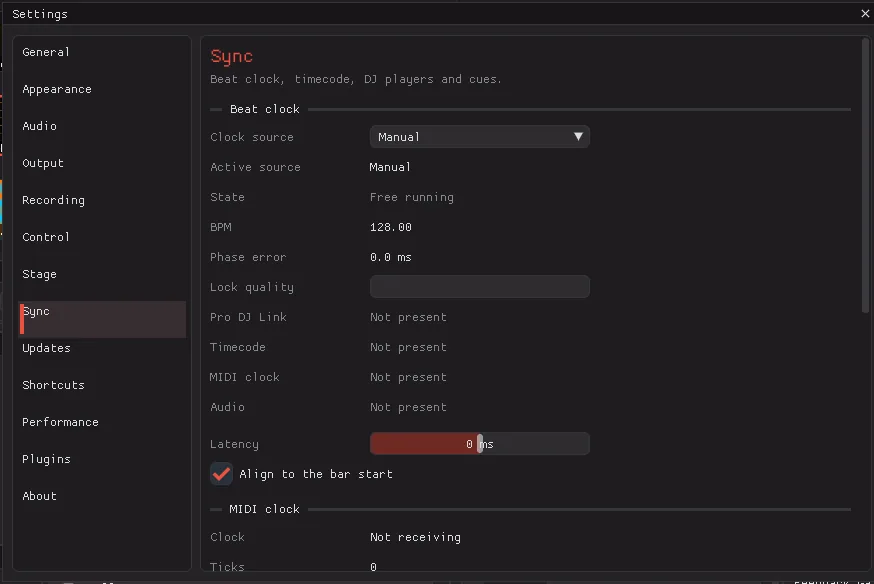
One beat clock drives everything that follows the beat. Settings, Sync chooses its source. Automatic takes the best source that is present, in this order: Pro DJ Link, timecode, MIDI clock, audio, manual. Or you fix one source. The clock corrects a phase error gradually, so a picture on the beat does not stutter.
The page shows the active source, a lock state (Free running, Searching, Acquiring, Locked or Lost), the phase error in milliseconds and a latency offset from minus 500 to plus 500 ms that you can set if the picture is a little early or late against the sound.
#Timecode
Timecode can come as LTC from an audio input of its own, with 24, 25, 29.97 drop frame or 30 frames a second, or as MTC over MIDI. Use a line input that only carries the timecode signal for LTC. If LTC and MTC both run, LTC is used. Timecode drives the clock position, two modulation sources (Timecode second and minute) and the cue list.
#MIDI clock
MIDI clock, start, stop and song position are followed. The MIDI device is chosen on the Control page and the Sync page shows whether clock is received, whether the transport runs and the position.
#Pro DJ Link
Tick Listen for Pro DJ Link beats to follow the beat packets of DJ players that use Pro DJ Link in your local network. NyrexVJ opens a UDP listener on port 50001. It never announces itself as a player and sends nothing, so there is no play state and no master flag, only the beats. Choose which player to follow.
#Network sync: several PCs
Two or more PCs that run NyrexVJ can follow one master: the beat, the tempo, play and pause, the timecode, the levels, colours, effects, macros and blackout, the deck and the clip that plays on each layer. Use it for a second output, for a second computer that carries a heavy layer, or for a backup that should stay warm. It is off by default. Open Settings, Sync and look for the block Network sync.
- On the master PC choose the role Master. Tick Allow other PCs in the network if the followers are other computers; leave it off for two programs on one PC. Press Copy key.
- On each follower PC choose the role Follower, type the IPv4 address of the master (for example
192.168.1.20, or127.0.0.1for two programs on one PC) and the same port as on the master (9030 at the start), paste the key and press Use this key. - Compare the Key check code on both pages. It is a short code made from the key, it is safe to read out loud and it must be the same on every PC.
- Allow the UDP port in the firewall of the master PC.
The status of the follower goes from Connecting through Getting the show state to In sync. The page shows the offset, the round trip and the jitter of the clock, the tempo and how many controls, clips and deck switches were applied. Three ticks decide what a follower takes over: Follow the controls, Follow decks and clips, and Follow beat, tempo and timecode. While a follower follows the controls, its own timeline and cue list are paused, because they would fight the master.
If the connection drops, the follower says Master lost, holding the last state: it keeps the last values, the tempo keeps running at the last value, its timeline and cues stay paused, and it reconnects on its own. After that only what changed on the master meanwhile is applied; something you edited on the follower that did not change on the master stays as you left it. If the two programs are different versions and their controls do not match, the follower shows Clock only (other version) and follows the beat alone.
#Hot standby: a backup PC that takes over
Hot standby uses two PCs for one show. The primary runs the show and the standby runs the same program, follows it through the network sync and keeps its picture black. If the primary stops, the standby can become the leader: it releases its picture, opens the network sync as master and tells the old primary to step down when it comes back. It is off by default and needs the network sync from the section above. Open Output, Hot standby to see everything in one window.
- Set up the network sync first: one PC as master (the primary), the other as follower (the standby), the same key and the same media files on both.
- On both PCs tick Use hot standby. Open the output window on both PCs, because an output that is not open counts as not ready.
- Watch the table Readiness of this PC on the standby. It checks the connection, the program version, the clock, the age of the show state, the clips of the show (by name and as files on this PC), that both PCs have the same show, the outputs, that every playing clip really works, whether the primary reports a fault and the age of the last session snapshot. Ready means every check passed, Check means a hint and Not ready means a check failed.
- Take over by hand with Take over... and confirm in the window that follows. The confirmation needs a moment on purpose. If the primary still answers, the window says so, because both PCs may then send a picture until the old primary has stepped down.
The standby takes over by itself only if you tick Take over automatically when the primary is lost, and only when all of this is true: the standby was ready for ten seconds before the loss, the primary did not answer for the set time (3 to 60 seconds, 5 at the start), the primary did not close on purpose, nothing is wrong on the standby (no clip that fails, an output that is open) and it did not already take over once. A takeover by itself happens once and you arm it again with Arm again. After a clean close of the primary there is no automatic takeover, but you can still take over by hand.
When a standby takes over, it counts the leader epoch one up. If the old primary comes back, it hears the higher epoch from the leader, steps down and follows the new leader as the new standby, with its picture held black. While the network between the two PCs is cut, both PCs may think that they are the primary, because neither can tell the other. That is why the video switcher must decide which picture the audience sees.
The block Last takeover (measured, not promised) shows the numbers of the last takeover on this PC: after how long the loss was detected, how old the last state was, how long the standby had been ready before, and how long it took to serve as leader. These are measurements from your own network and PCs and not a promise. Events lists what happened, newest first.
#The cue list
The cue list fires any control target at a time of the timecode: a clip, a column, a deck or a value. Add cue creates a cue at the current timecode, or after the last one if there is no timecode. Each cue has a time, an action and, for values, a value. Test fires it at once. Run cues turns the list on, and each cue fires once when the timecode passes its time. Cues do not fire after large jumps, so skipping through the timecode does not fire everything in between.
Found a mistake or something missing? Tell us on GitHub. The same manual is built into the program, so you have it without internet. Open it with F1 or from the Help menu, then User manual.