
Contents
Getting started
- Welcome to NyrexVJ
- Installing and first start
- The window at a glance
- Your first show in five minutes
Playing visuals
- The clip grid
- Decks and transitions
- Layers and blending
- The Clip window
- Effects
- The Library
- Presets and sessions
- The Master window
Music and motion
Your own content
- Video and image clips
- Your own shaders
- 3D models
- The Clip Creator
- Text, particles and effect chains
- The node effect editor
- Live sources: Spout, NDI and cameras
Output and recording
Live control and shows
- Control: MIDI, OSC and the web page
- Show sync and timecode
- The show timeline
- Stage: DMX, VRSL and VRChat
- Plugins
Reference and help
Manual / Playing visuals
Effects
#Effect slots
Every layer has four effect slots and so does the master. Effects run from slot 1 to slot 4, so the order matters: a blur before a colour change looks different from a colour change before a blur. The effects of a layer change only that layer, the effects of the master change the final picture.
Each slot has a tick box to switch it on or off, a list to choose the effect (type in the list to search it), up to four sliders, and a row for the music reaction. A slider that you moved goes back to its default with a right click. Effects that draw in three dimensions carry a [3D] mark in the list.
#Adding effects
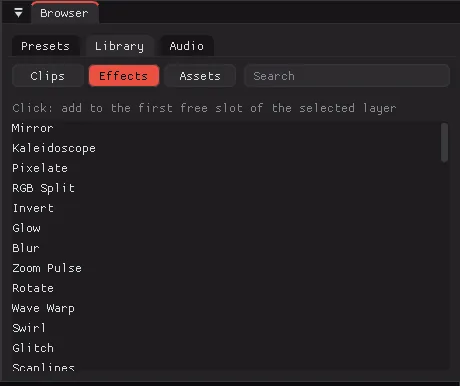
- Open the Library, switch to Effects and click an effect: it goes into the first free slot of the selected layer. If all four slots are used, NyrexVJ says so.
- Drag an effect from the Library onto a slot to put it exactly there.
- Right click an effect in the Library to add it to a chosen layer or to the master.
- Choose an effect from the list in the slot itself.
#Reacting to the music
Under the sliders of a slot you find a band list, a mode and a target. Pick Bass, Mid, High, Level or Kick (or a macro, an LFO, Beat or Bar) as the band. Then choose how it acts:
- Parameter moves one value of the effect, the one you pick as target, by the amount you set.
- Gate shows the effect only while the band is loud and fades it out in silence. The value you set decides how sensitive the gate is.
Gate is a fast way to make a strobe or a glitch that only hits on the beat.
#Your own effects
Besides the built-in effects there are effects that you make or install yourself: node effects from the node editor (shown as Node: name) and ISF filters from your shader folder (shown as ISF: name). They work in the slots like every other effect. See The node effect editor and Your own shaders. To keep a set of four effects together, save it as a chain, see Effect chains.
Found a mistake or something missing? Tell us on GitHub. The same manual is built into the program, so you have it without internet. Open it with F1 or from the Help menu, then User manual.