
Contents
Getting started
- Welcome to NyrexVJ
- Installing and first start
- The window at a glance
- Your first show in five minutes
Playing visuals
- The clip grid
- Decks and transitions
- Layers and blending
- The Clip window
- Effects
- The Library
- Presets and sessions
- The Master window
Music and motion
Your own content
- Video and image clips
- Your own shaders
- 3D models
- The Clip Creator
- Text, particles and effect chains
- The node effect editor
- Live sources: Spout, NDI and cameras
Output and recording
Live control and shows
- Control: MIDI, OSC and the web page
- Show sync and timecode
- The show timeline
- Stage: DMX, VRSL and VRChat
- Plugins
Reference and help
Manual / Getting started
Welcome to NyrexVJ
#What NyrexVJ is
NyrexVJ is a program for live visuals. You play generative clips, 3D models, videos and your own shaders on layers, stack effects on top, let everything follow your music and send the final picture to OBS, a projector or a screen. It was made for VRChat events and parties, and it is small enough to start in a second: one file, no installer, no game engine.
If you know Resolume Arena or similar programs, the layout will feel familiar: a clip grid on top, a deck and tempo row below it, a preview and an output picture, windows for the layer, the clip and the master, and a browser on the right.
#What you can do with it
- Play clips from a grid of 8 columns and 4 layers, 16 decks, with smooth transitions between decks.
- Let layers, the master and every effect value follow Bass, Mid, High, Level or Kick of your music, or macros, LFOs and the beat.
- Use more than 50 built-in clips and more than 70 effects, your own shaders, images, videos, glTF models and 3D scenes that you build yourself.
- Build your own effects from nodes without writing code.
- Send the picture to OBS with Spout, to other computers with NDI, to up to four output windows with mapping and edge blending, and into a video file.
- Control the show with a MIDI controller, OSC, a web page on your phone or a script, and automate it with a timeline and timecode.
- Drive stage lights with DMX over Art-Net, a VRSL strip in the video and VRChat avatar parameters.
#How to use this manual
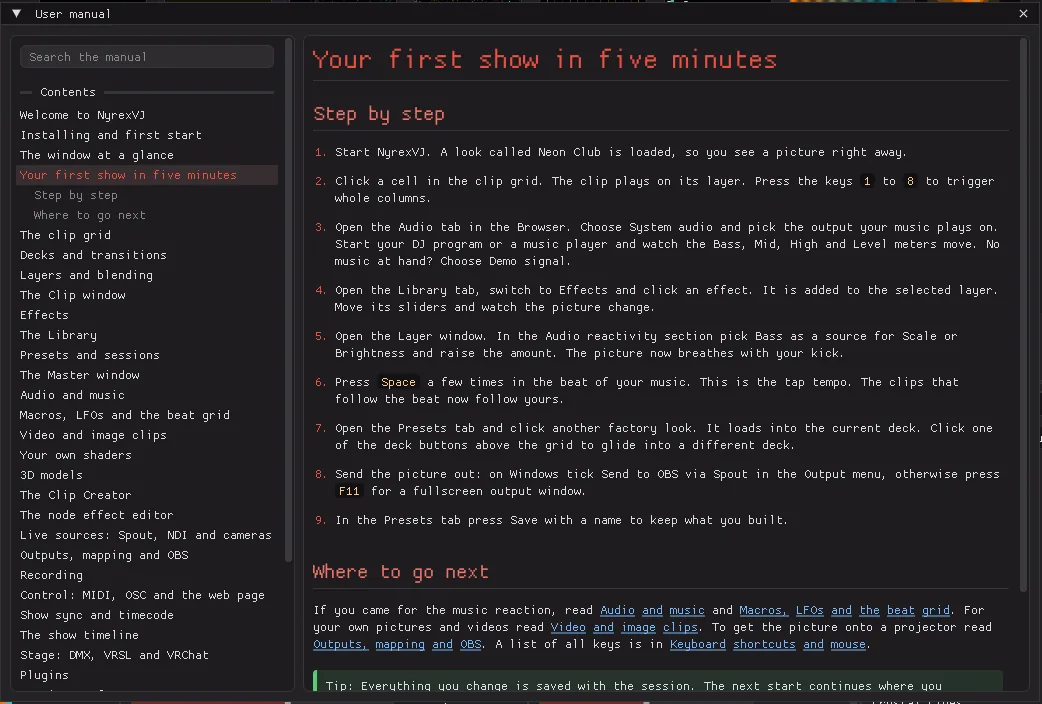
You are reading the manual window of the program. Open it any time with F1 or with the menu Help, User manual. The chapter list is on the left, the text is on the right. Click a blue underlined word to jump to another chapter or section, and use Back above the text to return. The search field at the top of the list finds chapters that contain every word you type, and Ctrl+F puts the cursor there.
The same text is on the website, with pictures. The manual is written in English and German. The program shows the German version when its language is German and the English version for every other language.
#Names used in this manual
Menu paths are written as Menu, Item, for example Settings, Audio means the Audio page of the Settings window. Buttons, sliders and tabs are written the way they appear on screen. Keys are written in code style, for example Ctrl+Shift+R. A value in code style is something you type or a file name.
The notes in this manual come in three kinds. A tip makes work easier, a note adds a detail, and a warning tells you about something that can cost you a show.
Found a mistake or something missing? Tell us on GitHub. The same manual is built into the program, so you have it without internet. Open it with F1 or from the Help menu, then User manual.