
Contents
Getting started
- Welcome to NyrexVJ
- Installing and first start
- The window at a glance
- Your first show in five minutes
Playing visuals
- The clip grid
- Decks and transitions
- Layers and blending
- The Clip window
- Effects
- The Library
- Presets and sessions
- The Master window
Music and motion
Your own content
- Video and image clips
- Your own shaders
- 3D models
- The Clip Creator
- Text, particles and effect chains
- The node effect editor
- Live sources: Spout, NDI and cameras
Output and recording
Live control and shows
- Control: MIDI, OSC and the web page
- Show sync and timecode
- The show timeline
- Stage: DMX, VRSL and VRChat
- Plugins
Reference and help
Manual / Reference and help
Performance
#Why it matters
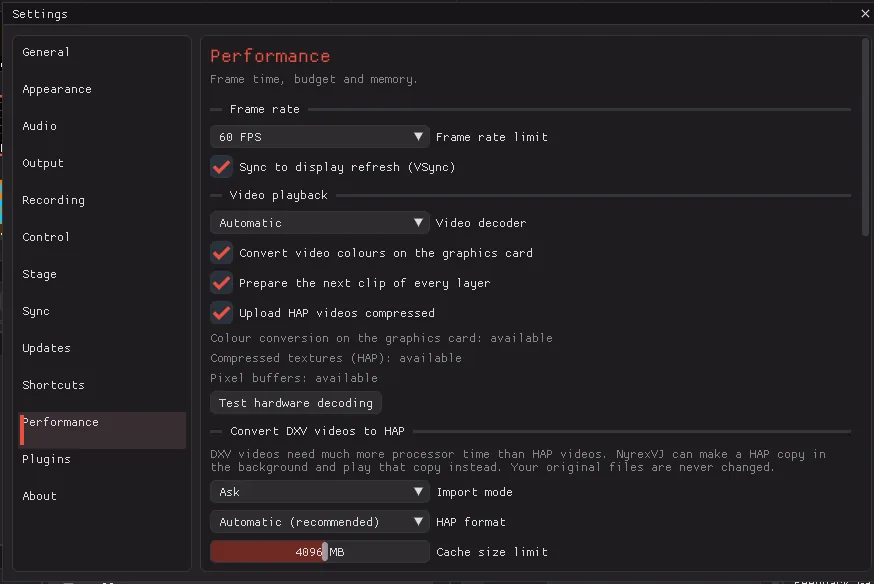
A live show needs a steady frame rate. NyrexVJ is light, but many layers, heavy effects, large videos and 3D models add up. Settings, Performance shows what takes the time, and the status bar can show the timings if you tick Show timings in the status bar.
#Frame rate and budget
Frame rate limit caps how often the program draws a frame, with or without VSync. A lower limit leaves more graphics and processor time for VRChat on the same computer. The frame budget is the time one frame may take, derived from your target frame rate. Frames above it count as too slow, and the page shows how many frames stayed within the budget, the average, the slowest five percent, the slowest one percent and the worst frame.
#Render quality
Layer resolution draws the layers and their effects at a lower size and scales them up when they are mixed. Full quality changes nothing, Balanced draws at 75 percent, Performance at 50 percent. Automatic lowers the resolution in small steps only while a frame takes longer than the budget and raises it again when there is room. Master effects and every output stay at full resolution.
#Graphics memory and warnings
Under Graphics memory and traffic the Performance page shows two kinds of numbers and keeps them apart. Measured by the graphics driver is what the driver says about the whole card, for every program together: memory in use, memory free and how often the driver had to move video memory into system memory. Only drivers with the extension GL_NVX_gpu_memory_info or GL_ATI_meminfo can say that, and software renderers give meaningless values, so on many computers the page says that nothing usable is reported. Estimated by NyrexVJ is what NyrexVJ itself allocated: render targets, thumbnails, images, videos, 3D scenes, effect buffers, text and particles. It does not see VRChat or any other program.
Memory budget (0 = off) is the most graphics memory NyrexVJ should use. It is off at the start, and while it is 0 nothing changes. With a budget, clips that are not playing and were not used for five seconds are unloaded when the estimate is over it: prepared videos first, then images, then 3D scenes. A clip that plays is never unloaded, and a clip you launch after it was unloaded loads again, which can take a moment. If that is not enough, NyrexVJ steps up: first it stops preparing the next clips, then it unloads after one second, and with Also lower the layer resolution ticked it draws layers at 75 and then 50 percent. It steps back when there is room again.
The page also shows:
- Video and live source upload: the picture data NyrexVJ hands to the driver, per second, the highest second of the last ten and the total. Images and models load once and are not counted.
- The slowest one percent and, from a 60 second window, P95 and P99, late frames (more than 1.5 times the budget) and dropped frames, estimated from the time between frames.
- Warnings for slow frames, dropped frames, memory near or over the budget, little free memory on the card, driver moves and a very high upload. They appear after two seconds, go away after six and show as a coloured count in the status bar. Warning limits changes the three that depend on your show.
#Text and particles
Particle limit per layer is the most particles a particle clip may have alive at once, from 64 to 16,384, and 2048 at the start. When the limit is reached newer particles are dropped and the picture stays smooth. Each particle costs 24 bytes of graphics memory. Show text and particle clips in the library hides them all from the Library. Experimental GPU particles lets clips that ask for it run on the graphics card, and Graphics memory for GPU particles is the budget for all of them together, 8 to 512 MB. See Text, particles and effect chains.
#What costs time
- A layer faded to zero opacity is not drawn, so hidden layers cost nothing.
- Every effect is one more pass over the picture. Replace a stack of effects with one node effect if you can.
- Large videos cost decoding time. HAP videos cost almost nothing on the processor, see Video and image clips.
- Live sources are closed three seconds after the last use.
- 3D models and scenes cost graphics time by their triangle count.
The page also shows the memory: an estimate of the graphics memory, the video memory and the program memory, and which clip or effect takes the time. What the driver measures, the memory budget and the warnings are in Graphics memory and warnings. Measured numbers and limits are in docs/PERFORMANCE.md of the project.
Found a mistake or something missing? Tell us on GitHub. The same manual is built into the program, so you have it without internet. Open it with F1 or from the Help menu, then User manual.