
Contents
Getting started
- Welcome to NyrexVJ
- Installing and first start
- The window at a glance
- Your first show in five minutes
Playing visuals
- The clip grid
- Decks and transitions
- Layers and blending
- The Clip window
- Effects
- The Library
- Presets and sessions
- The Master window
Music and motion
Your own content
- Video and image clips
- Your own shaders
- 3D models
- The Clip Creator
- Text, particles and effect chains
- The node effect editor
- Live sources: Spout, NDI and cameras
Output and recording
Live control and shows
- Control: MIDI, OSC and the web page
- Show sync and timecode
- The show timeline
- Stage: DMX, VRSL and VRChat
- Plugins
Reference and help
Manual / Playing visuals
The Clip window
#The selected clip
The Clip window shows the clip in the selected cell. If that cell is empty but the layer is playing something, it shows what the layer plays. At the top you see a picture of the clip, its name and its kind: video, image, shader file, 3D model, 3D scene, Spout input, NDI input, camera or plugin source. If no clip is selected the window asks you to select one in the deck or to click a clip in the Library.
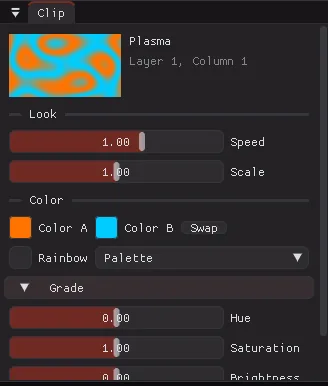
#Look and colour
The Look section has Speed and Scale. Speed runs from 0.1 to 4 times and changes how fast the clip moves, Scale zooms the clip from 0.25 to 4 times. Both belong to the layer, so they stay when you change the clip on that layer.
The Color section has two colours, A and B, a Swap button, a Rainbow switch and a Palette list. Generative clips use these two colours, so one click on a palette recolours a whole look. Under Grade you find Hue, Saturation, Brightness and Contrast for the layer, with Reset grade next to them.
#Controls of special clips
Some clips add their own controls to the Clip window.
- Video clips show the playback controls described in Video and image clips.
- Shader files show their error messages and their own sliders, see Your own shaders.
- 3D models and scenes show their loading state and information about the model, see 3D models.
- Spout, NDI and camera clips show the source selection and the connection state, see Live sources: Spout, NDI and cameras.
- Plugin sources show the parameters of the plugin, see Plugins.
Found a mistake or something missing? Tell us on GitHub. The same manual is built into the program, so you have it without internet. Open it with F1 or from the Help menu, then User manual.